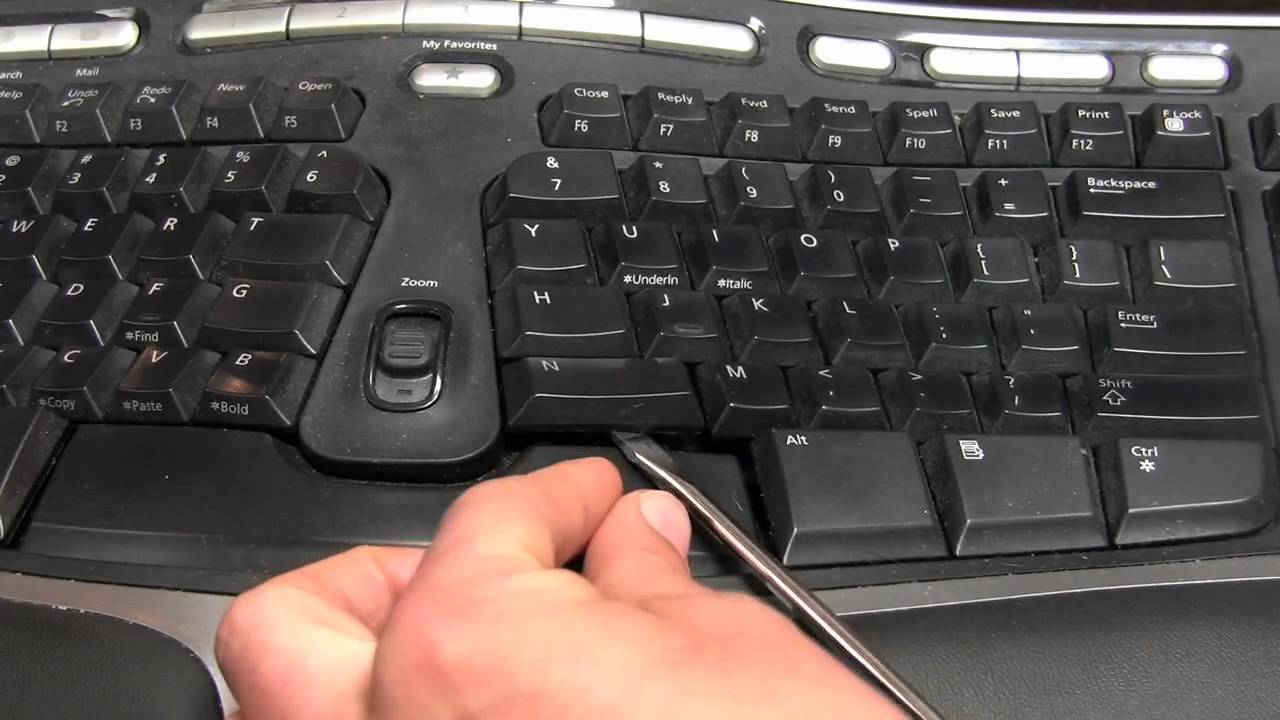
Keyboard problems can affect one key, several keys, or the entire keyboard. The cause may be dirt, accessibility settings, damaged drivers, liquid exposure, physical wear, or an internal connection problem.
Begin with software checks before attempting physical repair. This helps avoid removing keys unnecessarily.
Restart the Laptop
A temporary software error may prevent the keyboard from responding.
Save work using the mouse if possible and restart the laptop.
Test the keys in several applications after startup.
If the problem disappears, a temporary process or application was likely responsible.
Test an External Keyboard
Connect a USB or Bluetooth keyboard.
If the external keyboard works normally, the operating system is probably functioning and the built-in keyboard may have a hardware problem.
If both keyboards fail, settings, drivers, or system software may be responsible.
Helpful laptop keyboard troubleshooting can guide users through basic software and hardware checks.
Check Num Lock and Function Lock
Some keys change behavior when Num Lock, Function Lock, or another keyboard mode is active.
Press the relevant key and test again.
Small laptops may place number-pad functions on ordinary letter keys.
Review the keyboard symbols or manufacturer’s manual.
Review Accessibility Settings
Filter Keys, Slow Keys, Sticky Keys, and similar features can change how the keyboard responds.
Open accessibility settings and disable features that were turned on accidentally.
Test whether keys respond normally afterward.
Clean Loose Debris
Turn the laptop off and disconnect the charger.
Tilt the laptop gently and use short bursts of compressed air around the affected keys.
Do not insert metal objects under the keys.
Crumbs and dust can prevent the key mechanism from moving correctly.
Test the Key in Multiple Programs
A shortcut or application setting may affect only one program.
Open a text editor and type each problem key.
If the key works elsewhere, reset the application’s shortcuts or preferences.
Reinstall or Update the Driver
Windows users can update the keyboard driver through system updates or Device Manager.
Use official laptop manufacturer sources.
Restart after the driver is updated or reinstalled.
Avoid unknown driver websites.
Trusted computer maintenance guidance reduces the risk of installing incorrect software.
Check the Keyboard Language
The wrong keyboard layout can make keys produce unexpected characters.
Review language and input settings. Select the correct region and layout.
Remove layouts you do not use to prevent accidental switching.
Disable Problematic Software
Macro tools, gaming utilities, keyboard remapping applications, and automation software can change key behavior.
Close or uninstall recently added keyboard-related programs.
Restart and test again.
Review AI Keyboard Extensions
Some AI writing assistants monitor text input or add keyboard shortcuts.
Disable recently installed extensions and test the keyboard.
Modern AI writing tools can be useful, but conflicts may occur when several tools attempt to control the same shortcuts.
Check for Liquid Damage
If liquid was spilled, stop using the laptop immediately.
Disconnect power and do not continue pressing keys.
Liquid can cause corrosion that worsens over time.
Professional cleaning and keyboard replacement may be required.
Do Not Pull Keys Off Randomly
Laptop key mechanisms are fragile and vary between models.
Removing a key incorrectly can break the clips underneath.
Follow model-specific instructions only when the keycap is designed to be removable.
Professional repair is safer for important or unusual keys.
Check for Battery Swelling
A swollen battery may push upward against the keyboard or touchpad.
Look for a raised case, separated seams, or keys that feel uneven.
Stop using and charging the laptop if swelling is suspected.
Arrange professional battery replacement.
Use the On-Screen Keyboard
The operating system includes an on-screen keyboard.
Use it as a temporary solution for logging in, saving files, or completing urgent work.
An external keyboard is more comfortable for longer use.
Back Up Important Files
Keyboard failure may be connected to liquid damage or broader hardware problems.
Protect important documents before the condition worsens.
Organized backup and storage planning helps reduce the risk of losing work during repairs.
Inspect Recently Installed Updates
If the keyboard stopped working immediately after an update, restart again and install any additional patches.
Use system recovery options only when the timing clearly connects the problem to a recent change.
Do not remove security updates without a good reason.
Test in Safe Mode
Safe Mode starts the computer with limited drivers and services.
If the keyboard works in Safe Mode, third-party software may be causing the problem.
Remove recent utilities and disable unnecessary startup items.
Check the Internal Connection
The built-in keyboard connects to the motherboard through a thin ribbon cable.
Opening the laptop to inspect it requires care. The cable and locking connector can break easily.
Use a qualified technician unless the model is designed for simple servicing.
Replace the Keyboard When Necessary
Physical wear, liquid damage, and broken key mechanisms may require replacement.
Some laptop keyboards are separate parts. Others are built into the entire top case.
Ask for a repair estimate before approving the work, especially on an older laptop.
Final Thoughts
Keyboard problems should be tested in a logical order. Restart the laptop, check accessibility and language settings, test an external keyboard, clean loose debris, and update approved drivers.
Avoid pulling off keycaps or opening the laptop without model-specific knowledge.
Use an external keyboard temporarily and back up important files. Persistent problems, liquid damage, swelling, or broken mechanisms require professional repair.